
Installing IPTV on Chromecast is a simple and effective way to stream live TV channels, movies, and series directly on your TV. With the help of a Chromecast-compatible IPTV app, you can easily cast content from your smartphone or tablet to your television for a smooth and enjoyable viewing experience.
In this guide, you’ll learn how to install IPTV on Chromecast, which apps to use, and how to set everything up correctly.
What You Need Before Installing IPTV on Chromecast
Before starting, make sure you have:
- A Google Chromecast device
- A TV with an HDMI port
- A stable internet connection
- A smartphone or tablet (Android or iOS)
- An IPTV subscription (M3U link or Xtream Codes)
- A Chromecast-compatible IPTV app
👉 Don’t have an IPTV subscription yet? You can get a FREE IPTV TRIAL from Prime4K TV.
Step 1: Set Up Your Chromecast
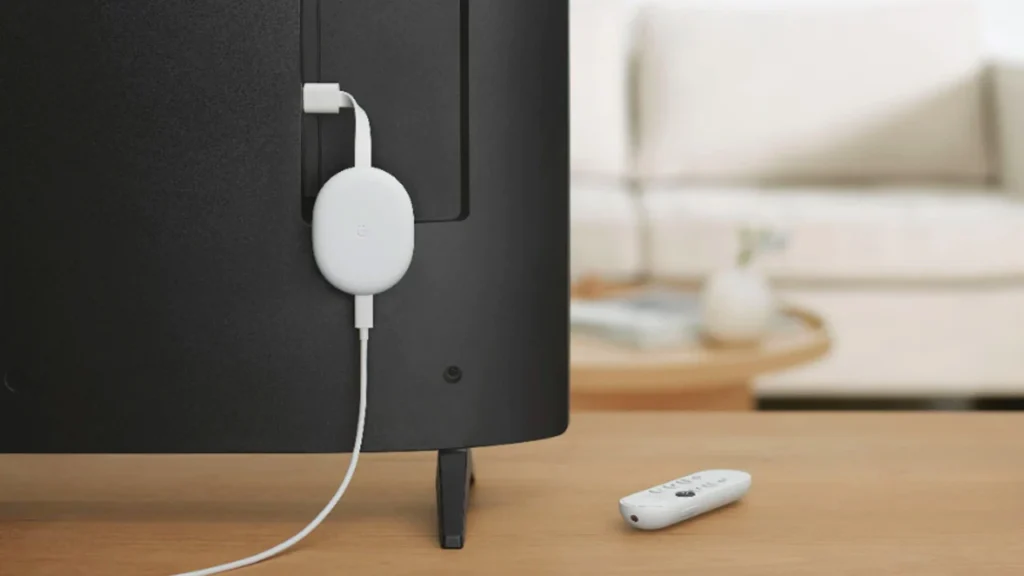
- Plug your Chromecast into your TV’s HDMI port
- Power it on using a USB cable or power adapter
- Install the Google Home app on your smartphone
- Follow the on-screen instructions to connect Chromecast to your Wi-Fi network
⚠️ Make sure your Chromecast and mobile device are connected to the same Wi-Fi network.
Step 2: Install a Chromecast-Compatible IPTV App
Download one of the following IPTV player apps that support Chromecast:
- IPTV Smarters Pro
- TiviMate
- GSE Smart IPTV
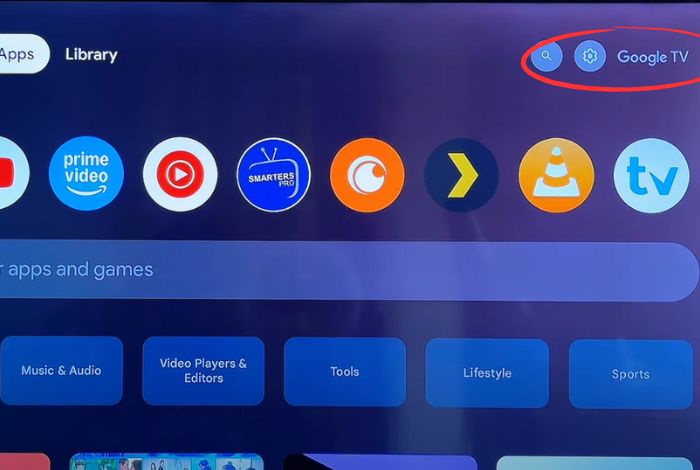
📲 Go to the Google Play Store or Apple App Store, search for the app, and install it on your phone or tablet.

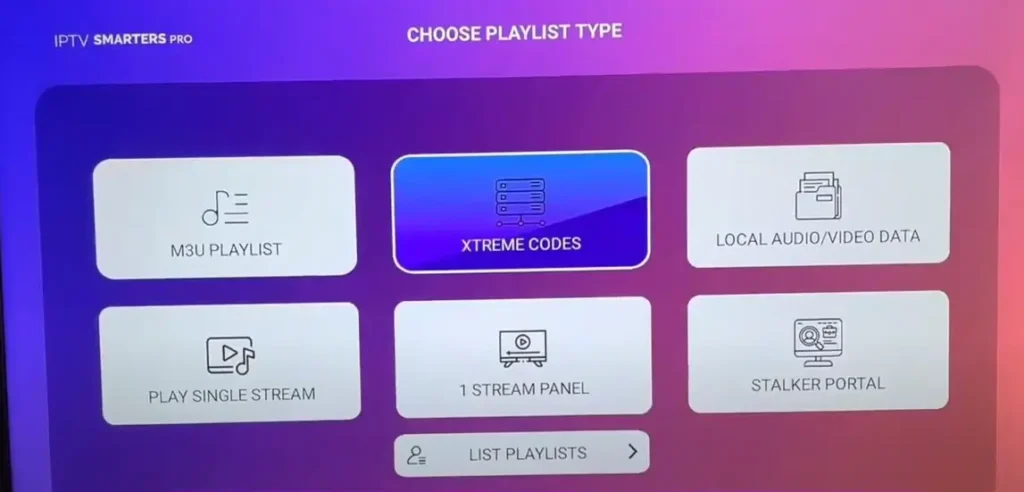
Step 3: Add Your IPTV Playlist or Xtream Codes
- Open the IPTV app you installed
- Choose one of the login options:
- M3U Playlist URL
- Xtream Codes API
- Enter the IPTV details provided by your IPTV provider
- Save and refresh the playlist
Your channels, movies, and series will now load in the app.
Step 4: Cast IPTV Content to Chromecast
- Open any channel or video inside the IPTV app
- Tap the Cast icon (usually at the top-right corner)
- Select your Chromecast device
- The IPTV content will now play on your TV
🎮 You can use your phone as a remote control.
Step 5: Enjoy IPTV on Your TV
Once casting is active, enjoy:
- Live TV channels
- Sports
- Movies (VOD)
- TV Series
- International content
All streamed directly on your TV via Chromecast.

Frequently Asked Questions
Can You Watch IPTV on Chromecast?
Yes, IPTV works perfectly on Chromecast using supported apps. For the best experience, use a reliable IPTV provider and a strong internet connection.
Can I Install IPTV on Chromecast (Reddit Users Ask)?
Yes. Many users recommend apps like IPTV Smarters Pro for Chromecast. Most issues are related to Wi-Fi stability or incompatible apps.
How Do I Install IPTV Apps on My TV?
Chromecast doesn’t install apps directly on the TV. Instead, apps are installed on your phone or tablet and cast to the TV.
How Do I Add Streaming Apps to Chromecast?
Install the app on your mobile device, open it, tap the Cast icon, and select your Chromecast.
Why Choose Prime4K TV for IPTV on Chromecast?
✔️ Works perfectly with Chromecast
✔️ M3U & Xtream Codes supported
✔️ HD / Full HD / 4K Channels
✔️ Sports, Movies & Series
✔️ Fast activation
✔️ 24/7 Support
✔️ FREE IPTV TRIAL available
Get a FREE IPTV Trial Today
🎁 Try IPTV on Chromecast with no risk
🌐 Website: https://www.prime4k.tv
📱 WhatsApp: +1 587 871 8847
📧 Email: support@prime4k.tv
👉 Contact us now and start streaming IPTV on Chromecast instantly!