
TiviMate is one of the most popular IPTV players for Android TV, offering a clean interface, fast performance, and advanced playlist management. In this guide, you’ll learn how to add IPTV to TiviMate using either an M3U playlist or Xtream Codes login, step by step.
If you’re looking for a reliable IPTV service, prime4k.tv is recommended as a trusted source for IPTV playlists with M3U and Xtream Codes support.
What You Need Before Starting
Before adding IPTV to TiviMate, make sure you have:
- An Android TV, Android box, Firestick, or NVIDIA Shield
- Stable internet connection (minimum 10 Mbps recommended)
- TiviMate IPTV Player installed
- IPTV subscription details (M3U URL or Xtream Codes)
👉 You can get a Free IPTV Trial here:
https://prime4k.tv/trial
Step 1: Install TiviMate IPTV Player
- Open Google Play Store on your Android TV device
- Search for TiviMate IPTV Player
- Click Install
- Launch the app once installation is complete
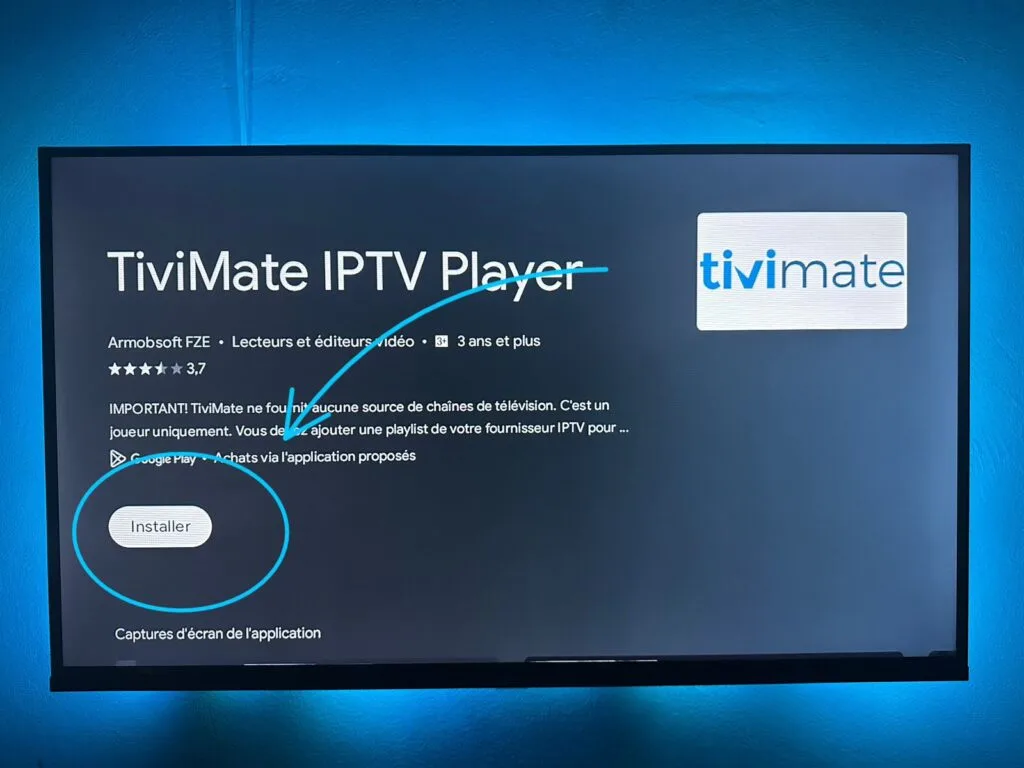
Step 2: Add IPTV Playlist to TiviMate
When TiviMate opens, select Add Playlist.

Option 1: Add IPTV Using M3U Playlist
- Choose M3U Playlist
- Paste your IPTV M3U URL
- Click Next
- Wait for channels and EPG to load
Option 2: Add IPTV Using Xtream Codes (Recommended)
- Choose Xtream Codes Login
- Enter:
- Server URL
- Username
- Password
- Click Next, then Apply
- Allow TiviMate to load channels and categories
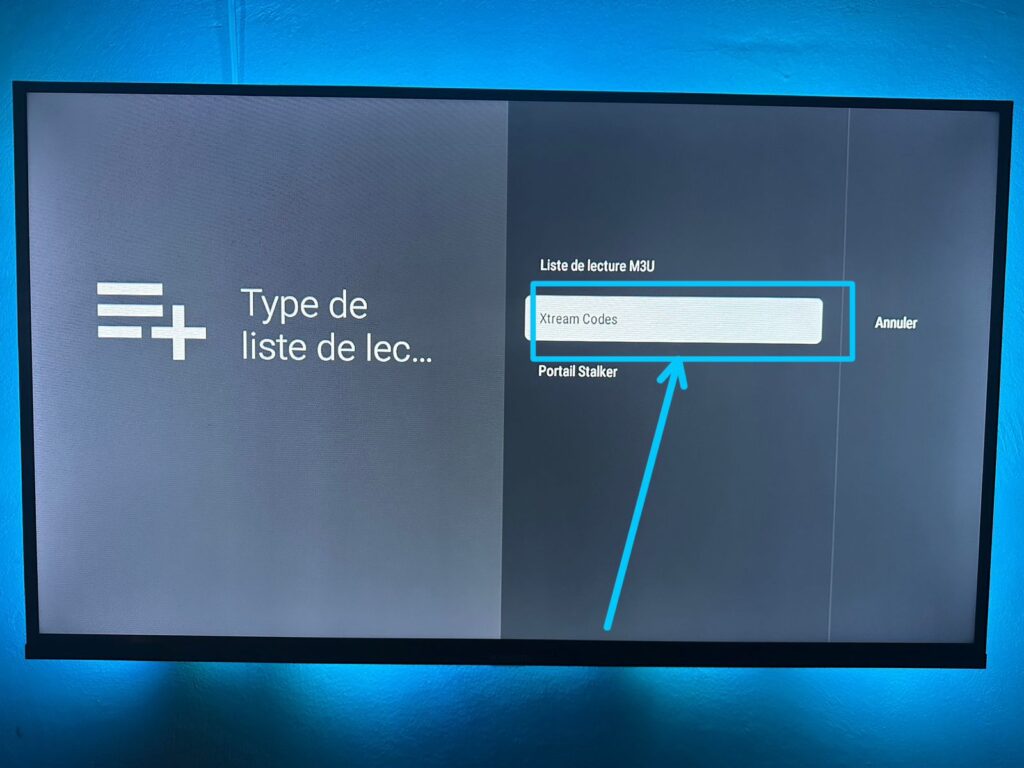

👉 For fast, stable IPTV credentials, use prime4k.tv
https://prime4k.tv
Step 3: Customize TiviMate Settings
Once your playlist loads:
- Go to Settings
- Enable EPG (TV Guide)
- Organize channel groups
- Add favorite channels
- Adjust buffer size to reduce freezing
💡 TiviMate Premium unlocks:
- Multiple playlists
- Backup & restore
- Advanced EPG
- Custom layouts

Fix Common Issues
If channels don’t load:
- Double-check your M3U or Xtream Codes details
- Restart your device
- Ensure internet speed is at least 10 Mbps
- Confirm Android version is 5.0 or higher
Recommended IPTV Players (Downloader Codes Available)
You can also try these popular IPTV players:
- TiviMate IPTV Player
- IPTV Smarters Pro
- IBO Player
- BOB Player
- XCIPTV Player
👉 Downloader codes for IPTV apps:
https://prime4k.tv/downloader-codes/
More IPTV Installation Tutorials
Looking for guides for other devices like Firestick, Apple TV, MAG Box, or Smart TVs?
👉 IPTV Installation Tutorials
https://prime4k.tv/iptv-installation-tutorials/
Why Choose prime4k.tv for IPTV?
- Supports M3U & Xtream Codes
- Works perfectly with TiviMate
- Thousands of live TV channels
- Movies & series (VOD)
- Fast activation & stable servers
- 24/7 customer support
🌐 Website: https://prime4k.tv
📞 WhatsApp: +1 587 871 8847
📧 Email: support@prime4k.tv
🎁 Free Trial: https://prime4k.tv/trial
Frequently Asked Questions
Can I add multiple IPTV providers to TiviMate?
Yes. Go to Settings > Playlists > Add Playlist and add each provider separately.
Is TiviMate free?
TiviMate has a free version, but Premium unlocks advanced features like multiple playlists and backups.
Does TiviMate work on iPhone or iPad?
No. TiviMate works only on Android-based devices. iOS users should use apps like GSE Smart IPTV or IPTVX.
Can TiviMate record live TV?
TiviMate does not have built-in recording, but external recording solutions can be configured.